If you have ever spent time trying to figure out whether an oddly shaped kitchen gadget or unlabeled piece of pottery is worth, you already understand the problem this project solves. This post walks through a Python desktop application that turns a webcam into an instant item identifier, pulling real Google Lens results and dropping you straight into eBay sold listings so you can price check on the spot.
The full source code is included at the end of this post. If you want to hand it directly to an AI assistant to build or modify, everything it needs to understand the project is here.
What does Picker do?
The workflow is intentionally simple. You set up a webcam facing toward a white background, creating a clean product photography setup. When you place an item in the frame and press the spacebar, the app captures a still image and pauses the live feed. You can retake the shot if the framing is off, or confirm the image and send it off for identification.
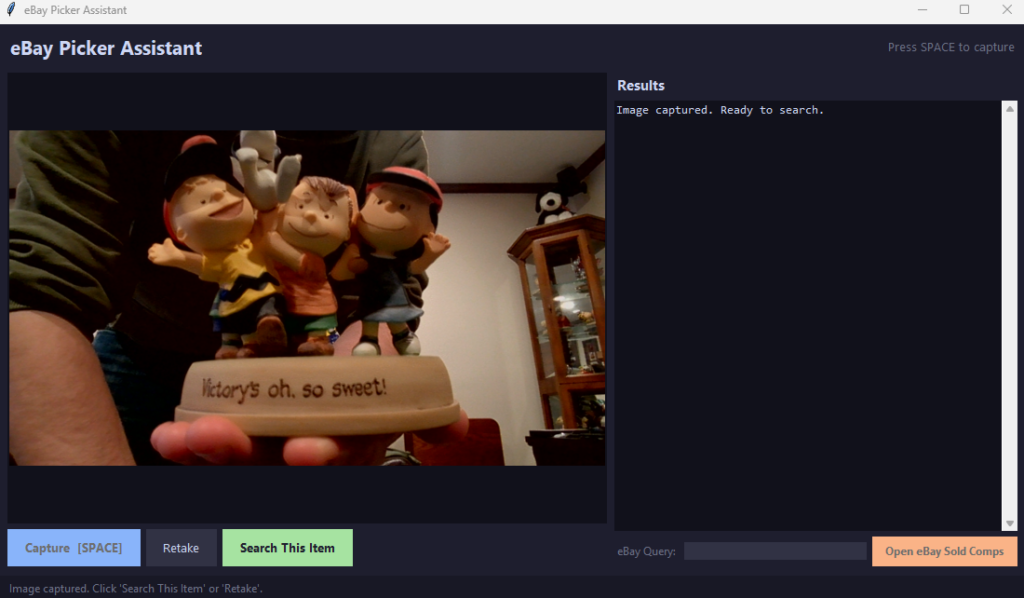
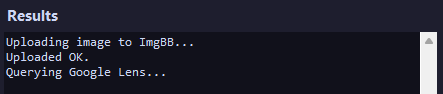
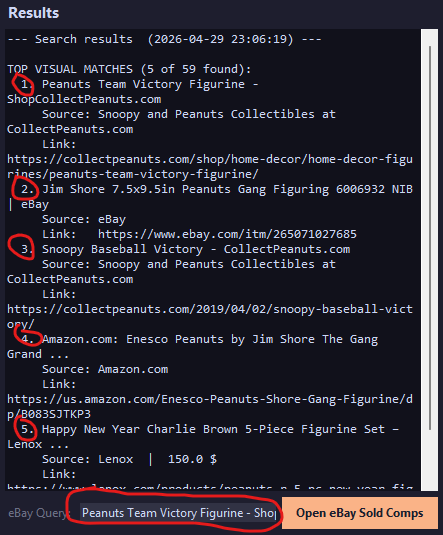
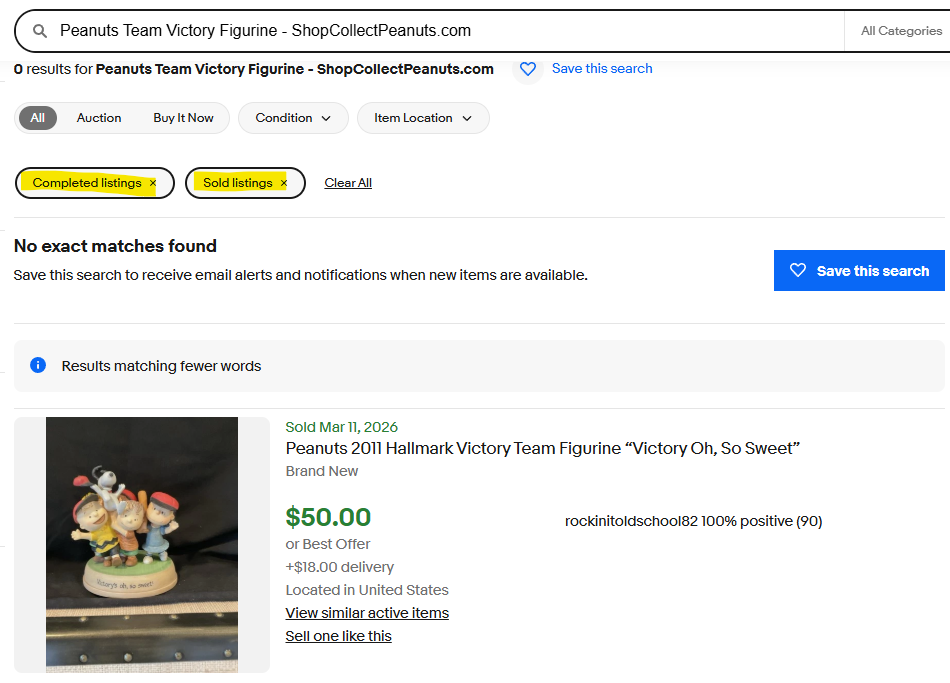
Behind the scenes, the image gets uploaded to a public hosting service, passed to Google Lens via the SerpApi API, and the structured results come back and populate a results panel. The panel shows the identified item name, a description if one is available, the top visual matches with source links and prices where present, any text detected in the image via OCR, and related search keywords. An eBay query field auto-populates with the best identification, which the user can manually edit before clicking a button that opens a browser tab filtered to eBay sold listings for that item.
The whole process takes about five to ten seconds per item.
The Tech Stack
Python 3.12+
The entire application is written in Python. No web framework, no database, no packaging complexity. It runs as a standard desktop script.
OpenCV (opencv-python)
OpenCV handles webcam access and frame capture. It opens the camera feed, reads frames at roughly 30fps for the live preview, and grabs a still when the user triggers a capture. OpenCV is well-established for this kind of work on Windows and requires no special drivers beyond a working webcam.
Tkinter
Tkinter is Python’s built-in GUI framework and ships with every standard Python installation on Windows. It handles the live camera preview panel, the capture and retake buttons, the scrollable results box, the eBay query entry field, and the status bar at the bottom. No additional install is required.
Pillow (pillow)
Pillow bridges the gap between OpenCV’s numpy array frames and the image formats that both Tkinter and the ImgBB upload API expect. It also handles JPEG encoding before the base64 upload step.
Requests (requests)
The standard Python HTTP library handles all outbound API calls, including the ImgBB image upload and the SerpApi search request.
SerpApi (Google Lens API)
SerpApi is a third-party service that provides structured programmatic access to Google Lens results. There is no official Google Lens API, so SerpApi acts as the bridge, handling the browser automation and CAPTCHA solving on their end and returning clean JSON. The free tier includes 100 searches per month, which is sufficient for testing and light use. Paid plans start at $25 per month for 1,000 searches.
ImgBB (Image Hosting)
SerpApi’s Google Lens endpoint requires a publicly accessible image URL rather than a local file path. ImgBB provides free image hosting with a simple API. The app encodes the captured image as base64 and posts it to ImgBB, which returns a public URL that gets passed straight into the SerpApi call.
What you need before you start
A Python installation
Python 3.12 or higher is recommended. Download it from python.org. During installation on Windows, check the box that adds Python to your PATH.
A webcam
Any 1080p USB webcam will work. Lower resolution webcams may struggle with small text, serial numbers, or fine detail on items like coins or jewelry. A downward-facing mount or camera arm above the tabletop is ideal, though a standard webcam propped at an angle works for testing.
Lighting
This is more important than the camera itself. A cheap ring light or a small product photography lightbox eliminates the shadows and glare that confuse image recognition systems. Even a consistent lamp positioned to minimize shadows makes a meaningful difference.
A SerpApi account and API key
Sign up at serpapi.com. The free tier requires no credit card and gives you 100 searches per month. Your API key is available in your dashboard immediately after signup.
An ImgBB account and API key
Sign up at imgbb.com. Navigate to api.imgbb.com to generate your free API key. No payment information is required.
Project Setup
Install the three required libraries with a single command:
pip install opencv-python pillow requestsTkinter does not need to be installed separately on Windows. It is included with the standard Python distribution.
The Code (Proof of Concept)
Save the following as picker_app.py. Before running it, open the file and fill in your API keys in the CONFIG section near the top.
"""
eBay Picker Assistant
=====================
Requirements (install once):
    pip install opencv-python pillow requests

Usage:
    1. Set your API keys in the CONFIG section below.
    2. Run:  python picker_app.py
    3. Place an object in the camera frame, press SPACE to capture.
    4. Confirm or retake the image.
    5. Results and eBay comps link appear in the output panel.
"""

import tkinter as tk
from tkinter import ttk, scrolledtext, messagebox
import cv2
from PIL import Image, ImageTk
import requests
import webbrowser
import base64
import io
import threading
import urllib.parse
import json
from datetime import datetime
import os

# =============================================================================
# CONFIG  --  Set your keys here
# =============================================================================
SERPAPI_KEY = "YOUR_SERPAPI_KEY_HERE"
IMGBB_KEY   = "YOUR_IMGBB_KEY_HERE"   # Free at imgbb.com
# =============================================================================


def upload_image_to_imgbb(pil_image):
    """Upload a PIL image to ImgBB and return the public URL."""
    buffer = io.BytesIO()
    pil_image.save(buffer, format="JPEG", quality=90)
    b64 = base64.b64encode(buffer.getvalue()).decode("utf-8")
    resp = requests.post(
        "https://api.imgbb.com/1/upload",
        data={"key": IMGBB_KEY, "image": b64},
        timeout=20,
    )
    resp.raise_for_status()
    return resp.json()["data"]["url"]


def search_google_lens(image_url):
    """Send image URL to SerpApi Google Lens and return parsed results."""
    params = {
        "engine": "google_lens",
        "url": image_url,
        "api_key": SERPAPI_KEY,
    }
    resp = requests.get("https://serpapi.com/search", params=params, timeout=30)
    resp.raise_for_status()
    return resp.json()


def build_ebay_sold_url(query):
    """Build an eBay sold-listings search URL from a query string."""
    encoded = urllib.parse.quote_plus(query)
    return (
        f"https://www.ebay.com/sch/i.html"
        f"?_nkw={encoded}&LH_Sold=1&LH_Complete=1"
    )


def format_lens_results(data):
    """
    Parse SerpApi Lens response into a human-readable summary
    and a best-guess eBay search query.
    Returns (summary_text, ebay_query).
    """
    lines = []
    ebay_query = ""

    # Knowledge graph (best single identification)
    kg = data.get("knowledge_graph")
    if kg:
        title = kg.get("title", "")
        description = kg.get("description", "")
        if title:
            lines.append(f"IDENTIFIED AS:  {title}")
            ebay_query = title
        if description:
            lines.append(f"DESCRIPTION:    {description}")
        lines.append("")

    # Visual matches (top results)
    visual = data.get("visual_matches", [])
    if visual:
        lines.append(f"TOP VISUAL MATCHES ({min(len(visual), 5)} of {len(visual)} found):")
        for i, match in enumerate(visual[:5], 1):
            m_title  = match.get("title", "Unknown")
            m_source = match.get("source", "")
            m_link   = match.get("link", "")
            m_price  = match.get("price", {})
            price_str = ""
            if m_price:
                price_str = f"  |  {m_price.get('extracted_value', '')} {m_price.get('currency', '')}"
            lines.append(f"  {i}. {m_title}")
            if m_source:
                lines.append(f"     Source: {m_source}{price_str}")
            if m_link:
                lines.append(f"     Link:   {m_link}")
        lines.append("")
        if not ebay_query and visual[0].get("title"):
            ebay_query = visual[0]["title"]

    # Text found in image (OCR)
    text_results = data.get("text_results", [])
    if text_results:
        ocr_text = " ".join(t.get("text", "") for t in text_results[:10])
        lines.append(f"TEXT IN IMAGE:  {ocr_text}")
        lines.append("")

    # Related searches (useful keywords)
    related = data.get("related_searches", [])
    if related:
        kws = ", ".join(r.get("query", "") for r in related[:6] if r.get("query"))
        if kws:
            lines.append(f"RELATED SEARCHES:  {kws}")
            lines.append("")

    if not lines:
        lines.append("No results returned from Google Lens.")
        lines.append("Try improving lighting or recapturing the image.")

    return "\n".join(lines), ebay_query.strip()


class PickerApp:
    PREVIEW_W = 640
    PREVIEW_H = 480

    def __init__(self, root):
        self.root = root
        self.root.title("eBay Picker Assistant")
        self.root.configure(bg="#1e1e2e")
        self.root.resizable(True, True)

        self.cap = None
        self.running = False
        self.captured_frame = None
        self.captured_pil   = None

        self._build_ui()
        self._start_camera()

        self.root.bind("<space>", lambda e: self._on_capture())
        self.root.protocol("WM_DELETE_WINDOW", self._on_close)

    def _build_ui(self):
        top = tk.Frame(self.root, bg="#1e1e2e", pady=6)
        top.pack(fill="x", padx=12)
        tk.Label(top, text="eBay Picker Assistant",
                 font=("Segoe UI", 16, "bold"),
                 fg="#cdd6f4", bg="#1e1e2e").pack(side="left")
        tk.Label(top, text="Press SPACE to capture",
                 font=("Segoe UI", 10),
                 fg="#6c7086", bg="#1e1e2e").pack(side="right")

        content = tk.Frame(self.root, bg="#1e1e2e")
        content.pack(fill="both", expand=True, padx=12, pady=4)

        left = tk.Frame(content, bg="#1e1e2e")
        left.pack(side="left", fill="y", padx=(0, 8))

        self.camera_label = tk.Label(left, bg="#11111b",
                                     width=self.PREVIEW_W, height=self.PREVIEW_H,
                                     relief="flat")
        self.camera_label.pack()

        btn_row = tk.Frame(left, bg="#1e1e2e", pady=6)
        btn_row.pack(fill="x")

        self.btn_capture = tk.Button(btn_row, text="Capture  [SPACE]",
                                     command=self._on_capture,
                                     bg="#89b4fa", fg="#1e1e2e",
                                     font=("Segoe UI", 10, "bold"),
                                     relief="flat", padx=14, pady=6, cursor="hand2")
        self.btn_capture.pack(side="left", padx=(0, 6))

        self.btn_retake = tk.Button(btn_row, text="Retake",
                                    command=self._on_retake,
                                    bg="#313244", fg="#cdd6f4",
                                    font=("Segoe UI", 10),
                                    relief="flat", padx=14, pady=6, cursor="hand2",
                                    state="disabled")
        self.btn_retake.pack(side="left", padx=(0, 6))

        self.btn_search = tk.Button(btn_row, text="Search This Item",
                                    command=self._on_search,
                                    bg="#a6e3a1", fg="#1e1e2e",
                                    font=("Segoe UI", 10, "bold"),
                                    relief="flat", padx=14, pady=6, cursor="hand2",
                                    state="disabled")
        self.btn_search.pack(side="left")

        right = tk.Frame(content, bg="#1e1e2e")
        right.pack(side="left", fill="both", expand=True)

        tk.Label(right, text="Results",
                 font=("Segoe UI", 11, "bold"),
                 fg="#cdd6f4", bg="#1e1e2e").pack(anchor="w", pady=(0, 4))

        self.results_box = scrolledtext.ScrolledText(
            right, bg="#11111b", fg="#cdd6f4",
            font=("Consolas", 10), relief="flat", wrap="word",
            insertbackground="#cdd6f4", state="disabled", width=55)
        self.results_box.pack(fill="both", expand=True)

        ebay_row = tk.Frame(right, bg="#1e1e2e", pady=6)
        ebay_row.pack(fill="x")

        tk.Label(ebay_row, text="eBay Query:",
                 font=("Segoe UI", 9), fg="#6c7086", bg="#1e1e2e").pack(side="left")

        self.ebay_query_var = tk.StringVar()
        self.ebay_entry = tk.Entry(ebay_row, textvariable=self.ebay_query_var,
                                   bg="#313244", fg="#cdd6f4",
                                   insertbackground="#cdd6f4",
                                   font=("Segoe UI", 9),
                                   relief="flat", width=32)
        self.ebay_entry.pack(side="left", padx=6)

        self.btn_ebay = tk.Button(ebay_row, text="Open eBay Sold Comps",
                                  command=self._open_ebay,
                                  bg="#fab387", fg="#1e1e2e",
                                  font=("Segoe UI", 9, "bold"),
                                  relief="flat", padx=10, pady=4, cursor="hand2",
                                  state="disabled")
        self.btn_ebay.pack(side="left")

        self.status_var = tk.StringVar(value="Camera initializing...")
        tk.Label(self.root, textvariable=self.status_var,
                 font=("Segoe UI", 9), fg="#6c7086", bg="#181825",
                 anchor="w", padx=12, pady=4).pack(fill="x", side="bottom")

    def _start_camera(self):
        self.cap = cv2.VideoCapture(0)
        if not self.cap.isOpened():
            self._set_status("ERROR: Could not open webcam. Check connection.")
            return
        self.cap.set(cv2.CAP_PROP_FRAME_WIDTH, 1280)
        self.cap.set(cv2.CAP_PROP_FRAME_HEIGHT, 720)
        self.running = True
        self._set_status("Camera live. Place item in frame, then press SPACE.")
        self._update_feed()

    def _update_feed(self):
        if not self.running:
            return
        if self.captured_frame is None:
            ret, frame = self.cap.read()
            if ret:
                self._show_frame(frame)
        self.root.after(30, self._update_feed)

    def _show_frame(self, frame):
        rgb = cv2.cvtColor(frame, cv2.COLOR_BGR2RGB)
        img = Image.fromarray(rgb)
        img.thumbnail((self.PREVIEW_W, self.PREVIEW_H))
        tk_img = ImageTk.PhotoImage(img)
        self.camera_label.configure(image=tk_img)
        self.camera_label.image = tk_img

    def _on_capture(self):
        if self.cap is None or not self.cap.isOpened():
            return
        ret, frame = self.cap.read()
        if not ret:
            self._set_status("Capture failed. Try again.")
            return
        self.captured_frame = frame
        rgb = cv2.cvtColor(frame, cv2.COLOR_BGR2RGB)
        self.captured_pil = Image.fromarray(rgb)
        self._show_frame(frame)
        self.btn_retake.configure(state="normal")
        self.btn_search.configure(state="normal")
        self.btn_capture.configure(state="disabled")
        self._set_status("Image captured. Click 'Search This Item' or 'Retake'.")
        self._write_results("Image captured. Ready to search.\n")

    def _on_retake(self):
        self.captured_frame = None
        self.captured_pil   = None
        self.btn_retake.configure(state="disabled")
        self.btn_search.configure(state="disabled")
        self.btn_capture.configure(state="normal")
        self.btn_ebay.configure(state="disabled")
        self.ebay_query_var.set("")
        self._write_results("")
        self._set_status("Camera live. Place item in frame, then press SPACE.")

    def _on_search(self):
        if self.captured_pil is None:
            return
        self.btn_search.configure(state="disabled")
        self.btn_retake.configure(state="disabled")
        self._set_status("Uploading image...")
        self._write_results("Uploading image to ImgBB...\n")
        threading.Thread(target=self._search_worker, daemon=True).start()

    def _search_worker(self):
        try:
            image_url = upload_image_to_imgbb(self.captured_pil)
            self._ui_update_status("Image uploaded. Querying Google Lens via SerpApi...")
            self._ui_append_results("Uploaded OK.\nQuerying Google Lens...\n\n")

            data = search_google_lens(image_url)
            summary, ebay_query = format_lens_results(data)
            timestamp = datetime.now().strftime("%Y-%m-%d %H:%M:%S")
            full_output = f"--- Search results  ({timestamp}) ---\n\n{summary}\n"

            self._ui_write_results(full_output)
            self._ui_set_ebay(ebay_query)
            self._ui_update_status("Done. Edit the eBay query if needed, then click 'Open eBay Sold Comps'.")

        except requests.HTTPError as e:
            msg = f"HTTP error: {e}\n"
            if e.response is not None and e.response.status_code == 400:
                msg += "Check your ImgBB or SerpApi key in the CONFIG section.\n"
            self._ui_write_results(msg)
            self._ui_update_status("Error during search. See results panel.")
        except Exception as e:
            self._ui_write_results(f"Unexpected error:\n{e}\n")
            self._ui_update_status("Error. See results panel.")
        finally:
            self.root.after(0, lambda: self.btn_retake.configure(state="normal"))

    def _open_ebay(self):
        query = self.ebay_query_var.get().strip()
        if not query:
            from tkinter import messagebox
            messagebox.showwarning("No Query", "Enter a search term first.")
            return
        url = build_ebay_sold_url(query)
        webbrowser.open(url)

    def _ui_update_status(self, msg):
        self.root.after(0, lambda: self._set_status(msg))

    def _ui_write_results(self, text):
        self.root.after(0, lambda: self._write_results(text))

    def _ui_append_results(self, text):
        self.root.after(0, lambda: self._append_results(text))

    def _ui_set_ebay(self, query):
        self.root.after(0, lambda: self._set_ebay_query(query))

    def _set_status(self, msg):
        self.status_var.set(msg)

    def _write_results(self, text):
        self.results_box.configure(state="normal")
        self.results_box.delete("1.0", "end")
        self.results_box.insert("end", text)
        self.results_box.configure(state="disabled")

    def _append_results(self, text):
        self.results_box.configure(state="normal")
        self.results_box.insert("end", text)
        self.results_box.configure(state="disabled")

    def _set_ebay_query(self, query):
        self.ebay_query_var.set(query)
        if query:
            self.btn_ebay.configure(state="normal")

    def _on_close(self):
        self.running = False
        if self.cap:
            self.cap.release()
        self.root.destroy()


if __name__ == "__main__":
    if SERPAPI_KEY == "YOUR_SERPAPI_KEY_HERE":
        print("ERROR: Set your SERPAPI_KEY in the CONFIG section of picker_app.py before running.")
    elif IMGBB_KEY == "YOUR_IMGBB_KEY_HERE":
        print("ERROR: Set your IMGBB_KEY in the CONFIG section. Get a free key at https://imgbb.com/")
    else:
        root = tk.Tk()
        app = PickerApp(root)
root.mainloop()Running the Code
Once your keys are in place, open a terminal in the folder where you saved picker_app.py and run:
python picker_app.pyThe app opens with a live camera feed. Place an item in frame, press Space, and then click Search This Item. Results appear within a few seconds. The eBay query field auto-populates with the best identification from Google Lens, and clicking Open eBay Sold Comps launches your browser directly to filtered sold listings for that item.
If the identification is off, you can edit the eBay query field manually before opening the link. That manual override is intentional and useful, especially for obscure or unlabeled items where the AI may return a close but imprecise match.
A Note on the Image Hosting Setup
One thing worth understanding is why ImgBB is in the pipeline at all. SerpApi’s Google Lens endpoint requires a publicly accessible URL for the image. It cannot accept a local file path or a base64 string directly. The ImgBB upload step bridges that gap: the captured image gets encoded and posted to ImgBB, which returns a public URL in under a second, and that URL is what gets sent to SerpApi.
Note: ALL IMAGES USED IN THIS APPLICATION ARE PUBLICLY AVAILABLE VIA URL ON ImgBB.
ImgBB’s free tier has no meaningful limit for this use case. Each uploaded image can also be set to auto-delete after a short window if privacy is a concern, though there is no sensitive data in a photo of a thrift store find.
